
If you have a HEIC photo from an iPhone or iPad and you need a PNG instead, you have probably already hit the same wall: the file refuses to open on Windows, a website rejects the upload, or your design tool simply pretends the file isn't there. A free online HEIC to PNG converter solves this in a few seconds — without an account, without an install, and without sending your photo to anyone.
This guide walks through when you actually need a PNG, the fastest way to convert HEIC to PNG online, and what to look for in a converter that respects your photos and your time.
When you actually need to convert HEIC to PNG
HEIC is Apple's default photo format on modern iPhones and iPads. It looks great and keeps file sizes small, but support outside the Apple ecosystem is patchy. You usually need to convert HEIC to PNG when:
- You're sending photos to a Windows or Android user who can't open HEIC without extra software.
- A website refuses the upload — many forms, marketplaces, and forums still only accept JPG and PNG.
- A design tool won't import the file — Figma, older Photoshop versions, Canva, and many browser-based editors only read PNG or JPG.
- You want to embed the photo in a document — Word, Google Docs, and most presentation tools handle PNG cleanly across platforms.
- You're keeping a long-term archive that needs to open on any computer, today and ten years from now.
Whenever the goal is "this image must just work, anywhere," PNG is the safer choice.
The 4-step way to convert HEIC to PNG online
The fastest path is an online HEIC to PNG converter that runs entirely in your browser. No download, no sign-up.
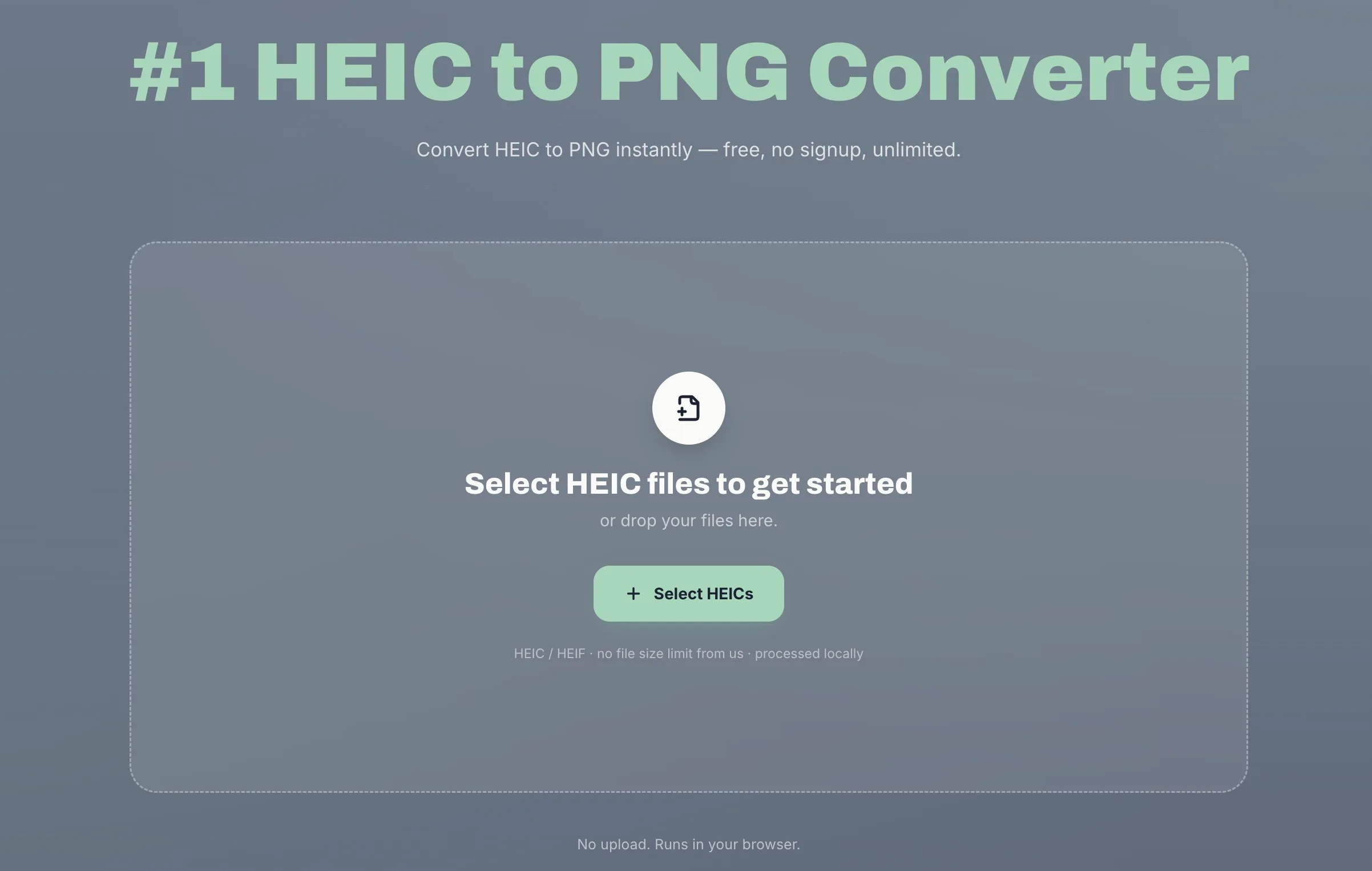
- Open the HEIC to PNG Converter. The dropzone appears at the top of the page.
- Drop your HEIC files, or click to select. You can add one photo or a whole batch in a single go.
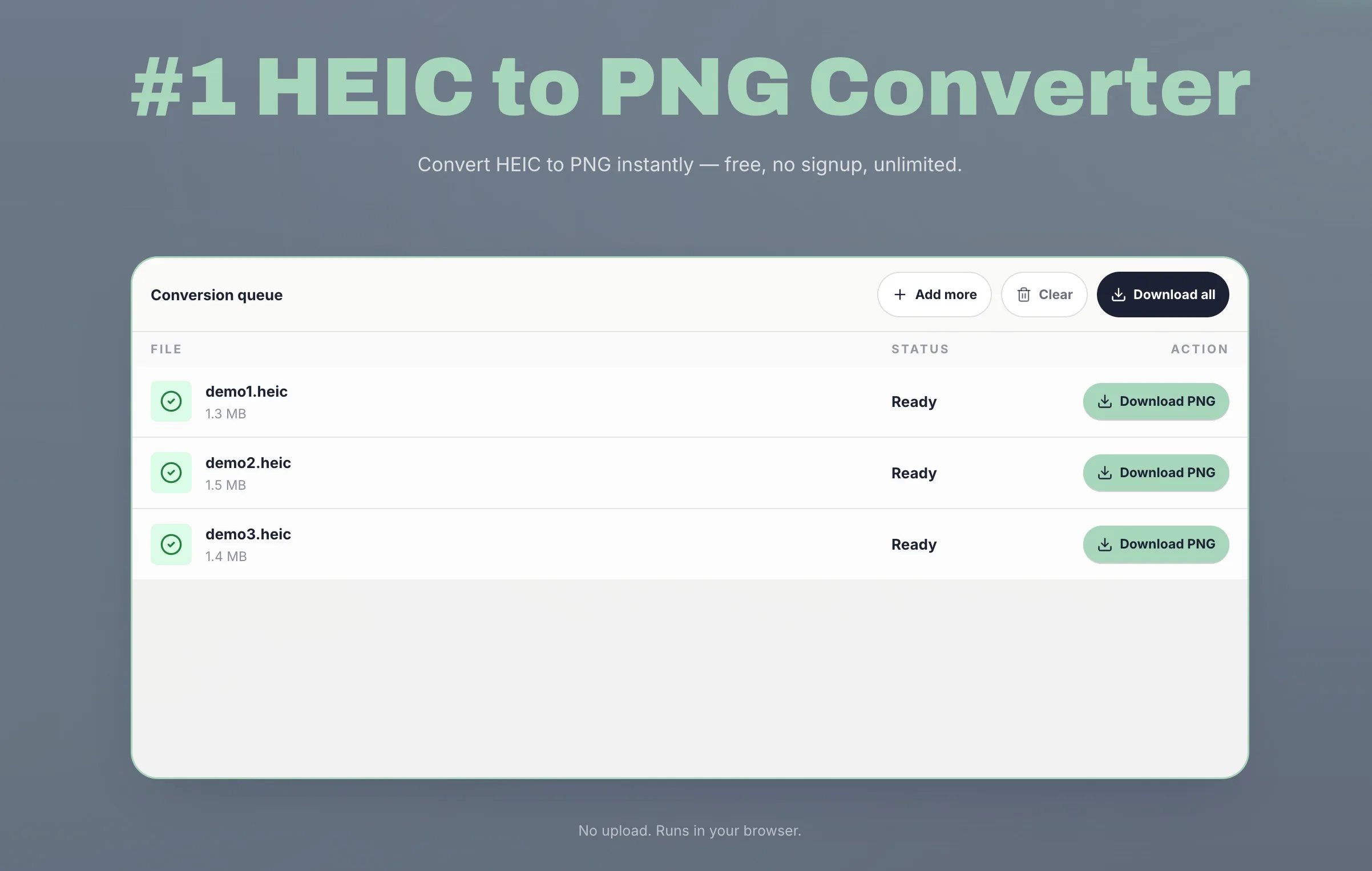
- Conversion starts automatically. Each photo is converted right there in your browser — nothing is uploaded anywhere.
- Download your PNG. A single file downloads as a direct PNG; multiple files bundle into one ZIP so you don't click for each one.
That's the whole flow. On most photos it finishes in a second or two.
Ready to try it? Open the HEIC to PNG converter →
What makes this HEIC to PNG converter different
Most free online HEIC converters either upload your photos to a server, hide features behind sign-ups, or skip details that quietly ruin the result. This one is built around five things we think actually matter:
- Free with no sign-up. No account, no email, no watermark, no daily limit on the number of HEICs you can convert.
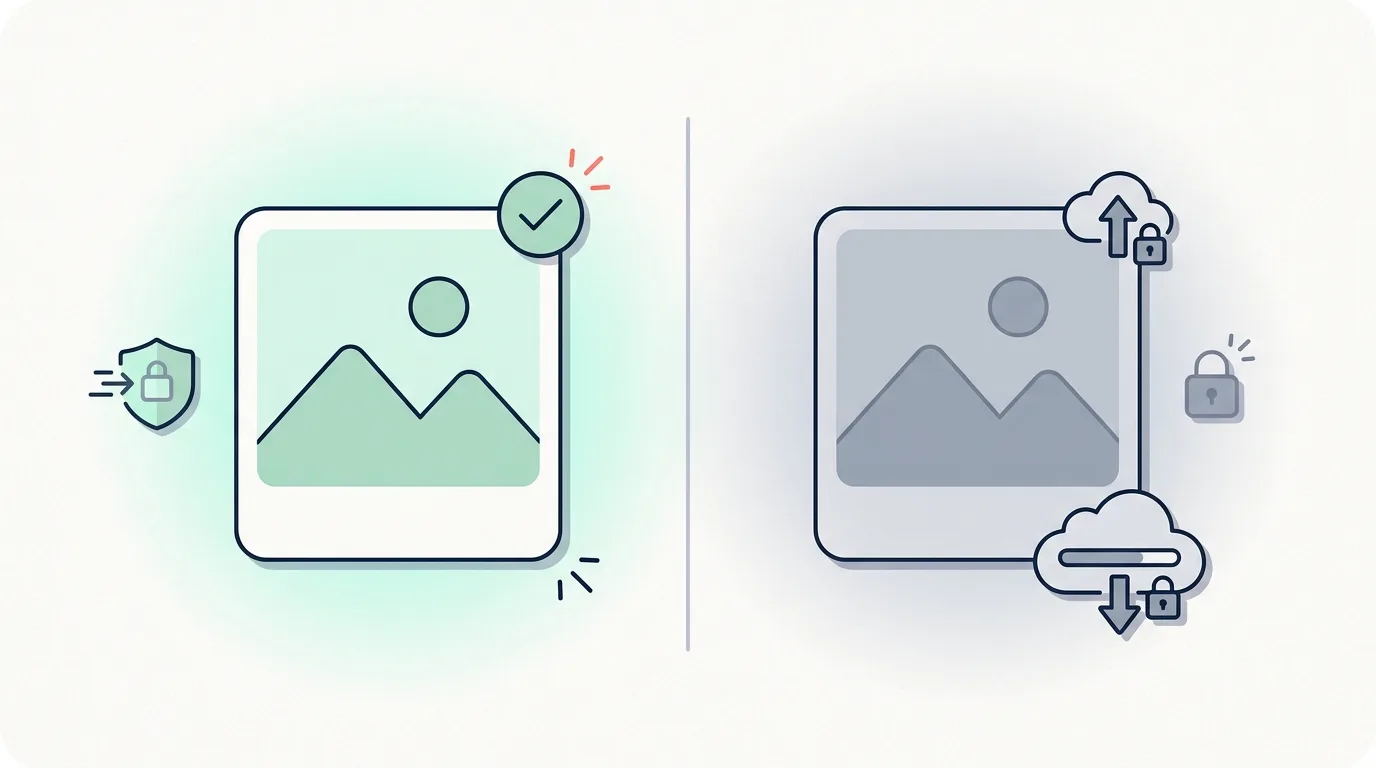
- Local conversion in your browser. Your HEIC files never leave your device. Closing the tab clears them from the page.
- Batch conversion. Add multiple HEICs at once, keep adding more if you remember another folder, and download all the PNGs as one ZIP.
- Automatic orientation correction. HEIC photos carry an orientation tag that many converters quietly ignore — which is why people end up with sideways photos. This converter reads that tag and applies it before saving, so your PNG stays right-side up.
- One-click downloads. A single conversion gives you a single PNG. A batch gives you a single ZIP. No "save as" dialog for each file.
These differences show up most when you're converting a folder of vacation photos — the batch flow and the orientation fix together turn a 20-minute task into a 20-second one. You can see the full list on the features section of the homepage.
Common scenarios people convert HEIC to PNG for
From iPhone HEIC to PNG for Windows
Windows can open HEIC if you install the HEIF Image Extensions from the Microsoft Store, but many people don't want to install an extension just to view a single photo. Converting to PNG once means the photo opens on every Windows machine without setup — useful when you're emailing a family member or handing off photos at work.
Uploading HEIC photos to a website
Some websites silently fail when you try to upload a HEIC — the form looks like it accepted the file, but nothing actually happens. Marketplaces, job boards, school portals, and government forms are common offenders. Converting the photo to PNG first avoids the guessing game.
Opening HEIC in design tools
Figma, older Photoshop versions, Canva, and most browser-based image editors accept PNG by default. Converting HEIC to PNG once means you can drop the photo straight into your design tool without rummaging through plugin marketplaces.
Attaching HEIC to documents and email
Word, Google Docs, Slack, and most email clients display PNG inline. HEIC often shows up as a generic file icon instead of an actual preview, which makes the document feel broken even when the file is fine.
FAQ
Is HEIC to PNG conversion free?
Yes. The converter is free with no sign-up, no watermark, and no daily limit on how many HEICs you can convert.
Can I convert HEIC to PNG on mobile?
Yes. The converter works in any modern mobile browser. For very large photos, a desktop browser may feel slightly faster because of more available memory.
Are my HEIC files uploaded to a server?
No. Your HEIC files are processed locally in your browser. Nothing is uploaded, and closing the tab clears the files from the page.
Will my PNG be rotated the wrong way?
No. The converter reads the orientation tag from your HEIC and applies it before saving the PNG, so the output stays right-side up.
Can I convert multiple HEIC files at once?
Yes. Add several HEICs together, and when they're ready, download them individually or as a single ZIP.
Will the PNG keep image quality?
Yes. PNG is a lossless format, and the converter doesn't add extra compression. You get a clean PNG of the decoded HEIC, with orientation applied.
What's the best way to convert HEIC to PNG?
For most people, the fastest way is an online HEIC to PNG converter that runs in your browser. Add your HEIC, let it convert locally, and download the PNG when it's ready. See the step-by-step walkthrough or the full FAQ for more.
Ready to convert? Open the HEIC to PNG Converter → and turn your HEIC photos into clean PNG files in seconds — free, no upload, no sign-up.